startup-stack

What things are — a plain-English reference

This page is for a founder who has hit a word — terminal, commit, connector, host — and wants a straight answer rather than a tutorial. Skim the headings, read the one you need, and leave; nothing here has to be read in order, and none of it has to be memorised.

For the narrative version — what changed, how to direct an AI, what it cannot see — read ai-basics.md once, start to finish. This page is the lookup you come back to.


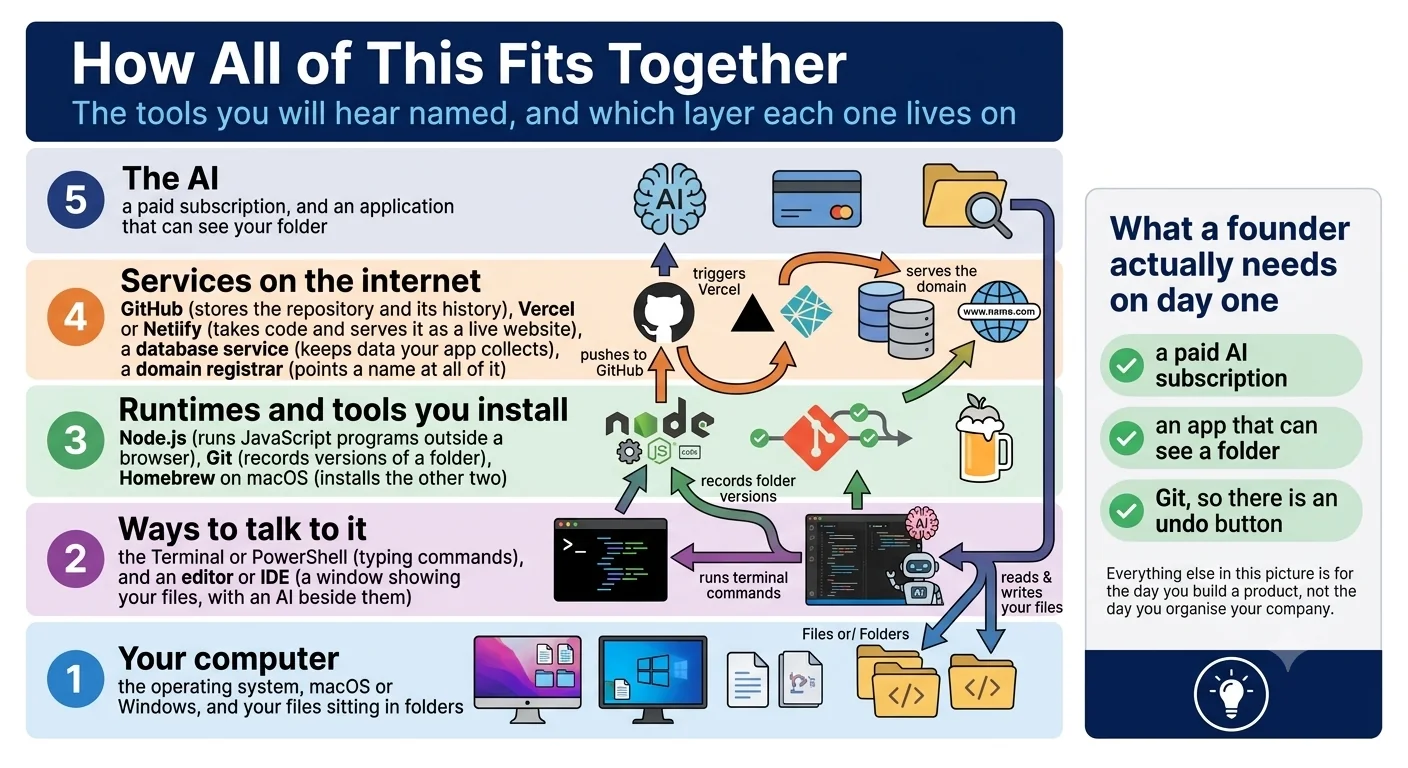
How does all of this fit together?

Five layers, stacked. Your own computer and its files at the bottom; above that the two ways of talking to it, a terminal and an editor; above that the tools you install, like Node and Git; above that the services on the internet that store and publish what you make; and the AI across the top, reaching down into the rest. Your instruction travels down through them, and the result comes back up.

You write the instruction in plain English and point at the folder it may work in. The tool reads what is in that folder, works out what to do and in what order, and writes the commands that would do it. Those commands run in the command line. The files that change are the ordinary files on your computer — the ones you can open in the usual way. Between you and everything below sits an approval gate: the tool proposes, and nothing crosses that line without your yes.

What beginners get wrong is treating what comes back as a preview. It is not. Files are created, edited and saved for real, which is why safety.md asks for an undo before you start and why the four steps you approve — brief, plan, build, review — are worth reading in ai-basics.md.

The whole arrangement fits in one picture.

Five layers — your computer, ways to talk to it, runtimes you install, services on the internet, and the AI — with arrows showing what talks to what.

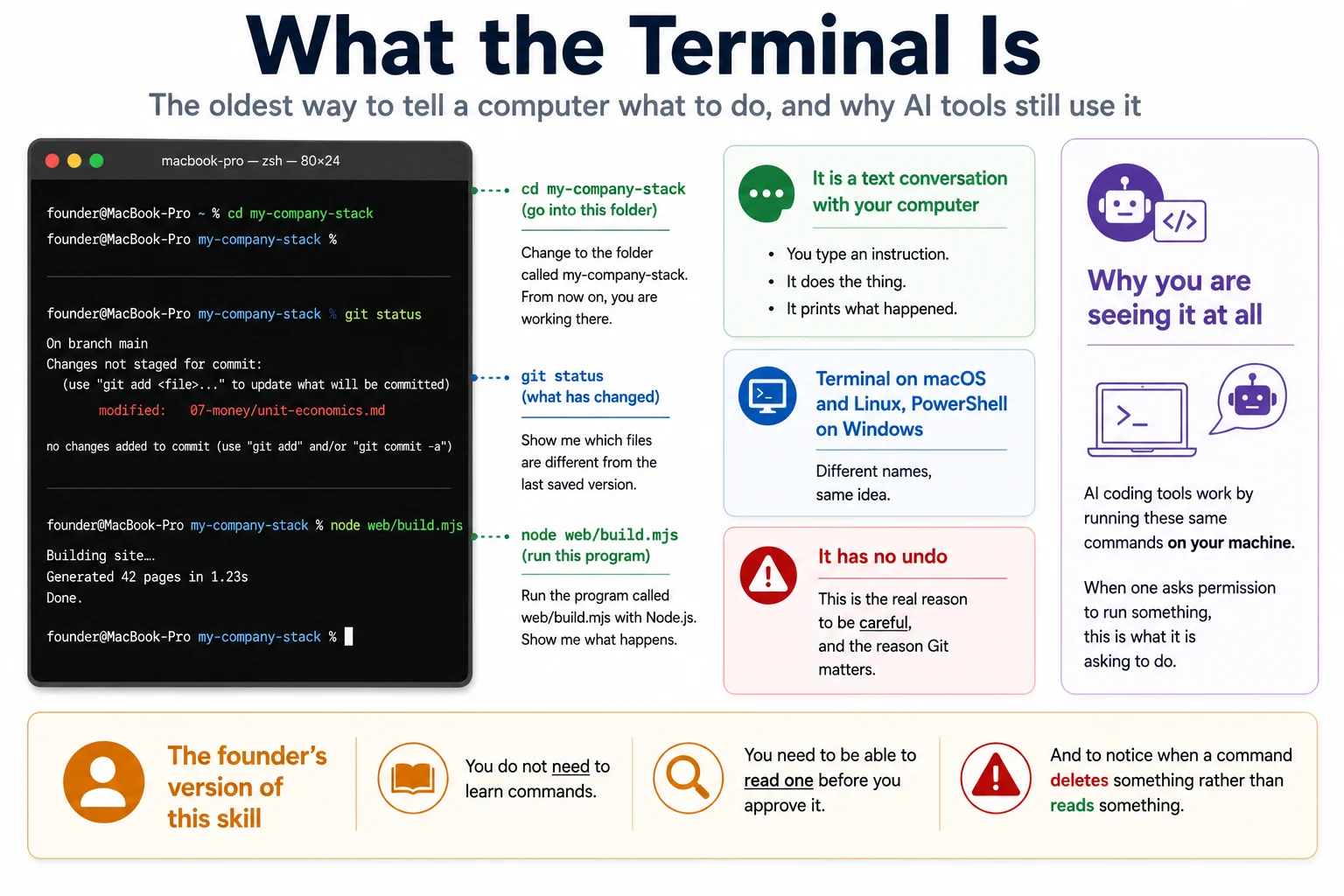
What is the terminal?

A text window. You type one line, press enter, and what happened prints back underneath, in order, under the line that caused it.

It is bare on purpose: no buttons, no icons, just a running record of everything that ran. That record is exactly the property you want when something is changing your files. QUICKSTART.md has you paste a few lines into one to take your own copy of this repo. After that, the tool types the lines and you read them.

The mistake is assuming you have to learn commands. You will rarely type one. Your job is to read the line the tool proposes and approve or refuse it, and two things deserve a second look before you do: anything that removes or overwrites a file, and any path pointing outside the folder you scoped.

Seeing one laid out removes most of the discomfort.

A terminal window with three example commands and their plain-English translations, and the note that it has no undo — which is why Git matters.

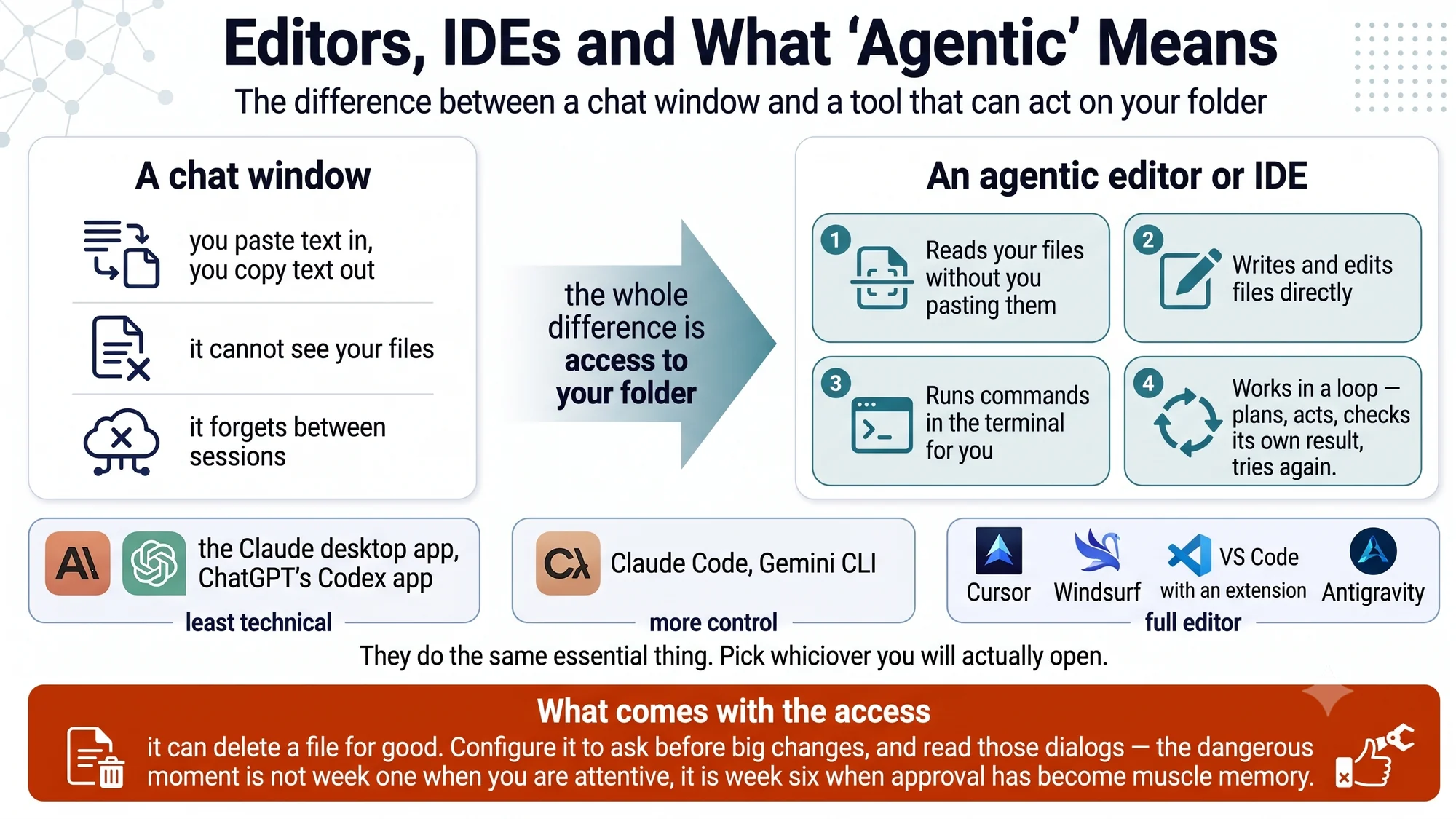
What is an editor, and what makes one "agentic"?

An editor is a window showing your folder on one side and the contents of one file on the other. Agentic means it also carries a chat panel wired into that folder.

Four things separate that panel from a chat window with an upload button. It opens the files itself, so you paste nothing in. It writes changes back into them, not just into a reply. It carries out the commands the work needs, with the result printed where you can see it. And it accounts for what it changed, file by file, before you decide to keep it. Any tool that does all four can run everything in this repo; QUICKSTART.md lists the common ones.

The mistake is expecting to be looking at code. In this repo the file you open is nearly always prose — a page of notes, a draft, a summary. The only part that looks technical is the short list of labels at the head of each file, and front-matter.md explains it field by field.

An editor is easier to recognise on sight than to describe.

A chat window against an agentic editor, with the four capabilities that separate them, and a row of named examples from least to most technical.

What is Git?

Git is a save point for a whole folder, the way a save game is a save point for a game. Each save point holds every file as it stood, not one file's history.

Three words cover it. A commit saves the folder as it stands, with a line saying what changed. A diff is the view of what is different between two save points. A clone takes your own copy of a folder that already has a history behind it. That is why QUICKSTART.md has you commit the empty stack before you run anything, and why safety.md calls Git the actual undo button: you can read line by line what the AI changed, keep it, or put the folder back and brief it better.

The mistake is thinking Git means putting your files online. It does not. Git runs on your computer, needs no account and no internet, and nothing leaves your machine unless you send it somewhere deliberately.

Four save points in a row make the idea obvious.

What Git is: a save point for a whole folder, and the habit that makes AI edits safe The diagram explains Git as a save point for a folder, the way a save game is a save point for a game. Across the top runs a timeline reading left to right, with an arrow at the right-hand end marked "time". Four dots sit on that line, and each dot is one commit. Above each dot is a small card drawn as a folder, labelled "the whole folder", holding a few short bars that stand for the files inside it. In the first card, headed "empty stack", the bars are pale and short, because the files exist but hold nothing yet. In the second, "after bootstrap", all three bars are long and drawn in the accent colour, because everything in the folder changed at that point. In the third, "corrected the one-pager", only the top bar is in the accent colour and the other two are grey, showing that a single file moved while the rest stayed as they were. In the fourth, "after unit economics", the three earlier bars are grey and a new fourth bar appears in the accent colour. A key beside the heading says the accent colour marks what changed at that point and grey marks what did not. The line under the timeline states that each dot holds the whole folder, every file as it stood, and not one file's history. Below that, three cards define the only three words needed. A commit saves the folder as it stands now, with a line saying what changed. A diff is the view of what is different between two save points. A clone takes your own copy of a folder that already has a history behind it. The lower half of the diagram has two columns. The left column, "what that gives you", lists three things, each with a tick. First, you can see exactly what changed, line by line, between any two save points, and that view is called a diff. Second, you can go back to any point, because nothing is overwritten for good and any earlier state of the folder can be brought back. Third, you can know when a number changed, because every save point carries a date and a note saying why, so you can find the moment a figure moved and what moved it. The right column, "the habit this repo asks for", is a three-step strip with arrows running downwards. Step one, commit before you run it: save the folder as it stands, before the prompt touches anything. Step two, run the prompt: let it read, write and change files, because it cannot lose what you already saved. Step three, look before you keep it: read the diff file by file, then keep it, or go back to the save point and run the prompt again with a better brief. A band beneath the two columns says that this is the undo, and it is what makes it safe to let an AI edit your files. The closing line says it is local, it is free, and it is the difference between a bad afternoon and a lost file. What Git is A save point for a folder, the way a save game is a save point for a game. Four save points, in order Each dot is one commit — the whole folder, kept exactly as it was. changed at this point unchanged the whole folder the whole folder the whole folder the whole folder time commit empty stack commit after bootstrap commit corrected the one-pager commit after unit economics Each dot holds the whole folder — every file as it stood — not one file's history. The only three words you need commit Save the folder as it standsnow, with a line saying why. diff The view of what is differentbetween two save points. clone Take your own copy of a folderthat already has a history. What that gives you Three things you only get from having save points. The habit this repo asks for Three steps, every time you run a prompt. See exactly what changed Line by line, between any two save points.That view is the diff. Go back to any point Nothing is overwritten for good. Any earlierstate of the folder can be brought back. Know when a number changed Every save point carries a date and a notesaying why. So you can find the moment afigure moved, and what moved it. 1 Commit before you run it Save the folder as it stands, before theprompt touches anything. 2 Run the prompt Let it read, write and change files. Itcannot lose what you already saved. 3 Look before you keep it Read the diff, file by file. Keep it, orgo back to the save point and run theprompt again with a better brief. This is the undo. It is what makes it safe to let an AI edit your files. It is local, it is free, and it is the difference between a bad afternoon and a lost file.
What Git is: a save point for a whole folder, and the habit that makes AI edits safe

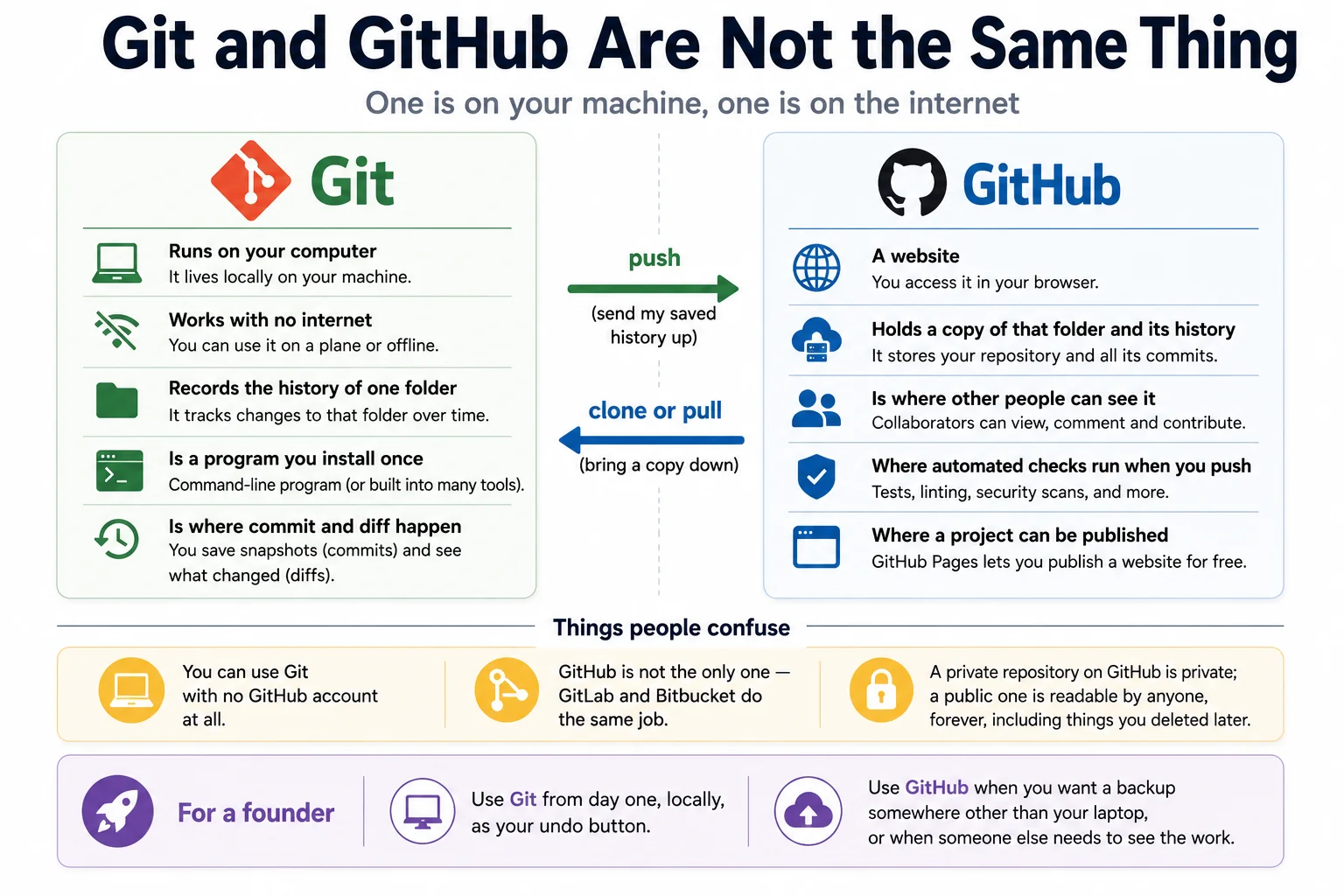
What is GitHub, and how is it different?

GitHub is a copy of that history kept online, in an account. Git is the history; GitHub is where a second copy of it lives.

Two moves connect them. You push to send your saved points up, and you clone or pull to bring the copy down. The second copy is what survives a lost laptop, what lets you give a coach or a co-founder access instead of emailing files about, and what allows a repository to serve a page on the web. Other services do the same job; this repo happens to live on that one, which is where the clone command in QUICKSTART.md points.

The mistake is not checking which kind of repository you made. A private one is private; a public one is public, to everyone, immediately. A stack holds customer names, prices and contracts — check which one you have before you push, and read safety.md on what should not be in the folder at all.

The two-places arrangement is worth one look.

Git on your computer against GitHub on the internet, with push and pull between them, and the three things people most often confuse.

What is a connector?

A connector is a switch that lets your AI tool reach a system outside your folder: your mail, your document drive, your calendar, your task tracker, a repository. You turn it on, authorise it once, and then refer to it in plain English.

The standard underneath is the Model Context Protocol — one adapter shape for every system, instead of custom wiring per tool. What matters to you is not the standard but the scope. A connector is an offer of access, and you choose which one and how much of it.

Three habits, and they are where the risk sits: read-only before you grant writing or sending; one mailbox, or one drive folder, rather than the whole account behind it; and only with permission, yours and your company's. The mistake is granting write or send access at the start, when read access would have answered the question. Nothing in this repo requires a connector — the stack is files in a folder — so treat each one you add as a deliberate widening of access, and read safety.md first.

The tangle a single standard replaces is easier to see than to explain.

What a connector is: one standard between an AI tool and the systems a founder already runs Two panels stand side by side, showing the same five systems reached in two different ways. The narrow left panel is headed "Without a standard" and subtitled "Custom wiring, tool by tool". A box marked "The AI" sits at the top of it, and five separate lines leave the bottom of that box and run down to five small blank blocks in a row. Those lines are drawn in the warning colour and they cross one another repeatedly, because each one goes to a different block in no particular order: a tangle rather than a pattern. A note under the blocks says these are the same five systems, and the caption reads that there are five tools and five different ways in, and each one has to be built and kept working. The wide right panel is headed "With one standard" and subtitled "One adapter shape, and every system plugs into it". On the left of that panel sits a card marked "The AI", pointed at your folder and now at these systems too. A single arrow runs from it into a tall block in the middle marked "One standard", which explains that it is the same shape for every system, with no custom wiring per tool. That block is the Model Context Protocol, described without leaning on the acronym. From one point on the right edge of the block, five clean lines fan out, none of them crossing, to five labelled cards. Each card carries a small drawn mark and one line saying what it holds. Mail holds threads and replies. A document drive holds decks and contracts. A calendar holds who you met and when. A task tracker holds open items and owners. A repository holds your files and their history. None of the five carries a company name or a logo, because the shape is the same whichever product you happen to use. Below the two panels, a strip of three numbered cards sets out the habits that keep this safe, because this is where the risk sits. One, read-only first: grant reading before you grant writing or sending, since a misfired email is a bad first week. Two, scoped: connect the one mailbox or folder the task needs, not the whole account. Three, with permission: yours and your company's, with personal data and anything under a confidentiality obligation staying out. The closing line says that the AI reaches exactly as far as you let it and no further, and that a connector is an offer of access in which you choose which one, and how much of it. What a connector is The Model Context Protocol, in plain terms: one standard for plugging your own systems into an AI tool. In practice it is something you switch on, authorise once, then refer to in plain English. Two ways in The same five systems, wired by hand or reached through one adapter. Without a standard Custom wiring, tool by tool. The AI The same five systems Five tools, five differentways in. Each one has to bebuilt and kept working. With one standard One adapter shape, and every system plugs into it. The AI Pointed atyour folder,and now atthese too. One standard The same shapefor every system.No custom wiringper tool. Mail Threads and replies. Document drive Decks and contracts. Calendar Who you met, and when. Task tracker Open items and owners. Repository Your files and history. Three habits This is where the risk is. They are not optional. 1 Read-only first Grant reading before you grantwriting or sending. A misfiredemail is a bad first week. 2 Scoped Connect the one mailbox orfolder the task needs, not thewhole account. 3 With permission Yours, and your company's.Personal data, and anythingunder a confidentialityobligation, stays out. The AI reaches exactly as far as you let it, and no further. A connector is an offer of access. You choose which one, and how much of it.
What a connector is: one standard between an AI tool and the systems a founder already runs

Which model should I use, and what is "effort"?

Two controls, not one. The tier is which model you pick. The effort is how hard you ask it to think about the one question in front of you. Beginners set the first and never notice the second.

Pick the tier by the kind of work, not by the name. Routine reformatting — extraction, renaming, filing, turning a page of notes into a table — sits at the bottom. Everyday drafting and research from material you already have is next, and most of the work is there. Ambiguous, high-stakes analysis, where being wrong costs you, sits above that. Every provider publishes its own names for these tiers, and the names change; the ladder does not. A larger tier also does not know more about your company — that comes from the folder, not from the model.

Effort is set per question. Keep it low for a lookup, a rename or a reformat, where you can check the answer at a glance. Turn it up for a decision you will act on, ask to see the reasoning, and then read it. Across prompts/ that is the difference between filing what has landed in your inbox folder and working out what one unit actually costs — same material, different setting.

Side by side, the two controls are obviously separate.

Tiers and the effort dial: two separate controls Two controls are drawn side by side, because they are independent of each other and are commonly treated as one. On the left is a ladder of four rungs, each labelled by what it is for rather than by what it is called. Rung one, the fastest and lightest, is routine reformatting: extraction, renaming, filing, turning a page of notes into a table. Rung two is everyday drafting and research from material you already have, and most of the work sits there. Rung three is ambiguous, high-stakes analysis such as pricing, positioning and what to tell an investor, where being wrong costs you. Rung four, the slowest and deepest, is for long-running problems you set going and come back to. A note under the ladder says every provider publishes its own names for these rungs and the names change; the ladder does not. On the right is an effort dial, a half-circle gauge with a needle and a double-headed arrow showing that it sweeps between two labelled zones: just answer on the left, think it through on the right. Keep it low for a lookup, a rename or a reformat, where you can check the answer at a glance. Turn it up for a decision you will act on, where you should ask to see the reasoning and then read it. A note says the dial changes one answer; it does not change your tier or your subscription. A strip along the foot matches three tasks from this repo to a rung and a dial position: renaming and filing what lands in the inbox is rung one on low; drafting the weekly recap from the stack is rung two on low to medium; deciding what one unit actually costs is rung three on high. The closing line reads: spend the thinking where being wrong costs you something. Tiers and the effort dial Two separate controls. Beginners set one and miss the other. The tier ladder Pick by the kind of work. Fast and light at the bottom. 4 The hardest work slowest, deepest Long-running problems you set going andcome back to. Rare, and worth the wait. 3 Ambiguous, high stakes Pricing, positioning, what to tell aninvestor. Being wrong here costs you. 2 Everyday drafting Drafting and research from material youalready have. Most of the work sits here. 1 Routine reformatting fastest, lightest Extraction, renaming, filing, turning apage of notes into a table. Every provider publishes its own names for theserungs, and the names change. The ladder does not. The effort dial Set it for the one question in front of you. Just answer Think it through Keep it low A lookup, a rename, a reformat. You cancheck the answer at a glance. Turn it up A decision you will act on. Ask to seethe reasoning, then read it. The dial changes one answer. It does notchange your tier or your subscription. Three tasks from this repo The same material, three different settings. Task Rung Effort dial Renaming and filing what lands in the inbox Files arrive; they need names and a home. Rung 1 routine work Low Drafting the weekly recap from the stack Everything it needs is already written down. Rung 2 everyday drafting Low to medium Deciding what one unit actually costs A number you will repeat in public. Show the working. Rung 3 high stakes High Spend the thinking where being wrong costs you something.
Tiers and the effort dial: two separate controls

What about hosts, domains and databases?

A knowledge base needs none of them. No host, no domain, no database, no framework. It is a folder of text files on your computer, and it stays that way however large it grows. These words are explained here only so they are not a mystery the first time somebody says one to you.

A host takes a repository and serves it to the public as a website, rebuilt whenever the repository changes. A domain is the address people type into a browser; it points at the host so your pages answer at a name you chose. A database is a separate service that remembers what people type in — accounts, orders, bookings, messages. A framework is a set of ready-made parts a developer assembles an application from.

The one people get wrong is assuming a host includes a database. It does not: a host serves pages and keeps nothing, so publishing a site gives you nowhere to put what a visitor typed. You need a database only when strangers are typing into your product and what they type has to be kept. Building a public site or a product is a separate project. It carries its own requirements document, its own sign-offs and its own judgement calls about what may go out under your name. This page does not teach any of that, and neither does the rest of this repo.

The chain from a folder to a published page, and the place a database does not sit in it, is worth one look.

Beyond the knowledge base A left-to-right chain of four numbered cards runs across the top, showing how a folder on your computer becomes a page that anyone can visit. The first card is headed "Your folder" and labelled "the files themselves"; it says the files on your computer are all a knowledge base is — text in folders, and nothing else. An arrow leads to the second card, "A repository", labelled "history, kept online", which is the same folder with its history stored online, where every saved version is kept and access can be shared. A second arrow leads to the third card, "A host", labelled "published as a site", which takes a repository and serves it to the public as a website, rebuilt whenever the repository changes. A third arrow leads to the fourth card, "A domain", labelled "how people arrive", which is the address people type into a browser; it points at the host so your pages answer at a name you chose. Below the third card a dashed line drops downwards and is struck through with a red cross, beside the note that a host is not a database: it serves pages and remembers nothing. Set apart underneath the chain rather than inside it, a second row of three cards explains the database itself. "What it is" describes a place that remembers what people type in — accounts, orders, bookings, messages — and adds that it stores rather than serves. "Where it is not", marked with a red cross, says a host serves pages and keeps nothing, so publishing a site gives you nowhere to put what a visitor typed. "When you need one", marked with a green tick, says only when strangers are typing into your product and what they type has to be kept; until then, you do not. The closing strip states the scope: a knowledge base needs none of this, because it is a folder of text files, and the words are here only so they are not a mystery the first time you meet them. Beyond the knowledge base Four words you keep hearing, what each one does, and where a database sits. From a folder to a public website Each stage takes the one before it and adds exactly one thing. 1 the files themselves Your folder The files on yourcomputer. This is alla knowledge base is:text in folders, andnothing else. 2 history, kept online A repository The same folder, withits history, storedonline. Every savedversion is kept, andyou can share access. 3 published as a site A host Takes a repositoryand serves it to thepublic as a website,rebuilt whenever therepository changes. 4 how people arrive A domain The address peopletype into a browser.It points at the hostso your pages answerat a name you chose. A host is not a database. It serves pages; it remembers nothing. And a database, which is not in that chain A separate service. It is the one founders most often assume a host already includes. What it is A place that remembers whatpeople type in: accounts,orders, bookings, messages.It stores; it does not serve. Where it is not A host serves pages and keepsnothing. Publishing a sitegives you nowhere to putwhat a visitor typed. When you need one Only when strangers are typinginto your product and whatthey type has to be kept.Until then, you do not. A knowledge base needs none of this. It is a folder of text files. The words are here so they are not a mystery the first time you meet them.
Beyond the knowledge base

Words you will hear, in one line each

WordWhat it means
repositoryA folder whose whole history is kept, so any earlier version can be brought back. Often shortened to "repo".
commitOne save point: the folder exactly as it stood, with a line saying what changed and why.
branchA separate line of changes you can work on without disturbing the main one, until you fold it back in.
cloneTake your own copy of a repository, history and all, onto your computer.
pushSend the save points on your computer up to the online copy.
pull requestA proposed set of changes, shown against what is there now, for someone to read and accept or reject.
markdownPlain text with a few punctuation marks that mean headings, lists and links. Every file in this repo is markdown.
front matterThe small block of tags at the top of a file: what it is, when it was updated, whether it is confirmed.
plain textA file with no hidden formatting — what you see is all there is. Cheap to read, and openable by anything.
tokenThe unit text is counted in, roughly a word or a piece of one. Everything read and everything written is counted this way.
contextThe working memory for a single question — your instruction plus every file it opened — and it is finite.
promptThe instruction you give it. A written-down instruction you reuse is also called a prompt — that is what prompts/ holds.
agentAn AI that does more than answer: it reads, decides an order, runs steps and reports back, stopping for your approval.
modelThe AI itself. The tool is the window you drive it through; the model does the reading and the writing.
APIA way for one piece of software to talk to another directly, with no person in the middle.
open sourceFiles anyone may read, copy and change, under a stated licence. This repo is open source.
local versus cloudLocal means it runs on your computer and your files stay there. Cloud means it runs on someone else's, over the internet.

Where to go next

  • ai-basics.md — the same ground as a narrative, read once, start to finish
  • ../QUICKSTART.md — the first hour, with the words on this page put to use
  • method.md — why the system is shaped this way, in six ideas
  • safety.md — the guardrails, before any tool gets write access to your files
  • ../prompts/INDEX.md — the tasks themselves, and the order to run them in

Generated from docs/what-things-are.md in the repository. Edit the markdown, not this page.